 Voxera
Windows · Early Access v2.0.1
Install Voxera for Windows
Use this guide when Microsoft Edge shows a download warning, then follow the installer. Only run an installer you downloaded from our official v2.0.1 release.
-
Keep the downloaded file (Edge & SmartScreen)
When Edge warns that the file is “uncommonly downloaded”, start from Downloads in the top-right of the browser: click ⋯ (More actions) next to the installer in the list. A tall panel opens with the full SmartScreen message; there, open the menu beside Delete and choose Keep so the file is not removed.
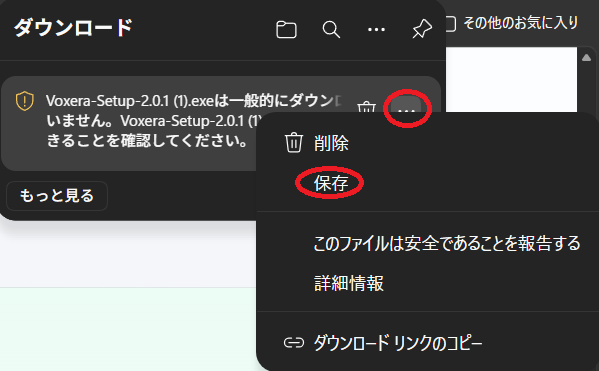
1. Downloads (top-right) → ⋯ next to the file 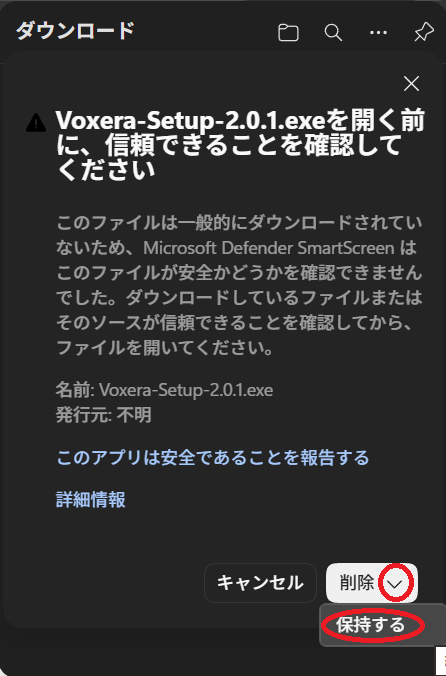
2. Tall warning panel → menu next to Delete → Keep -
Choose install scope
Install for me only (recommended) puts the app under your profile (next step). Install for all users needs administrator approval and should default to Program Files (for example
C:\Program Files\Voxera)—not the same folder as per-user installs. Pick the mode your organization requires.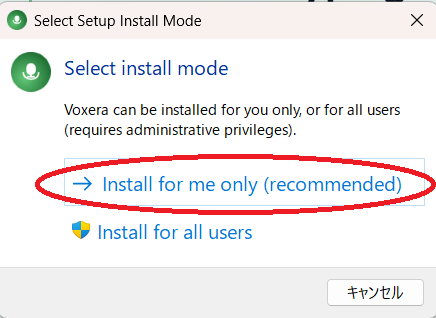
-
Confirm the install folder
The suggested folder depends on the previous step: per-user installs default to something like
%LocalAppData%\Programs\Voxera; all-users installs default to%ProgramFiles%\Voxera. Confirm or adjust, then click Next.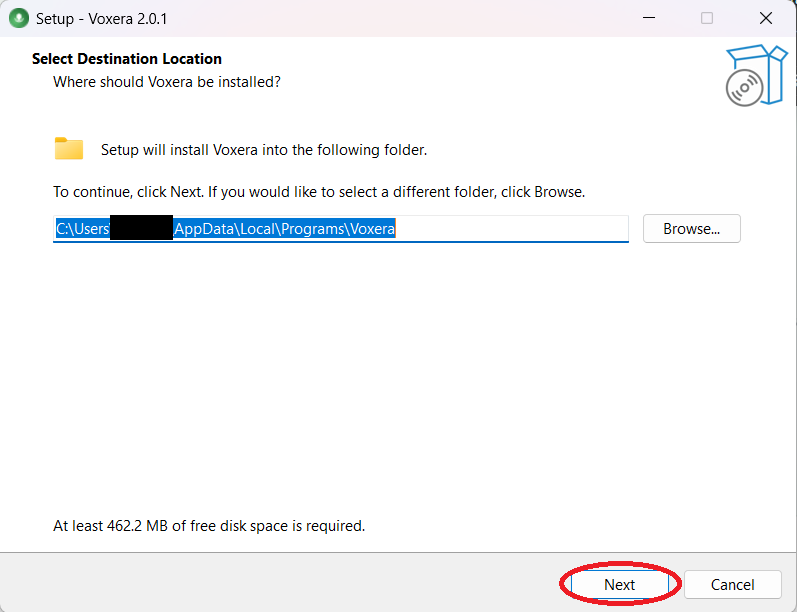
-
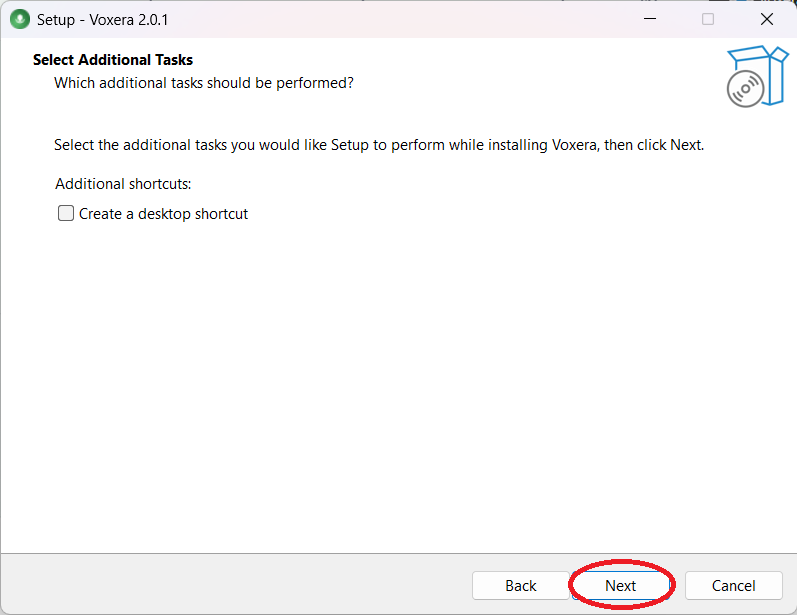
Optional desktop shortcut
Turn on Create a desktop shortcut if you want one, then click Next.
-
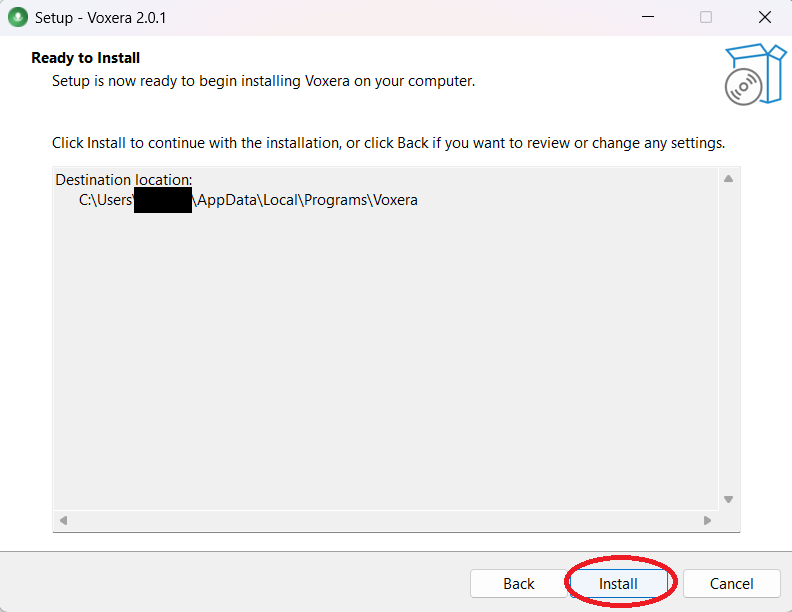
Start the installation
Review the destination and click Install.
-
Finish
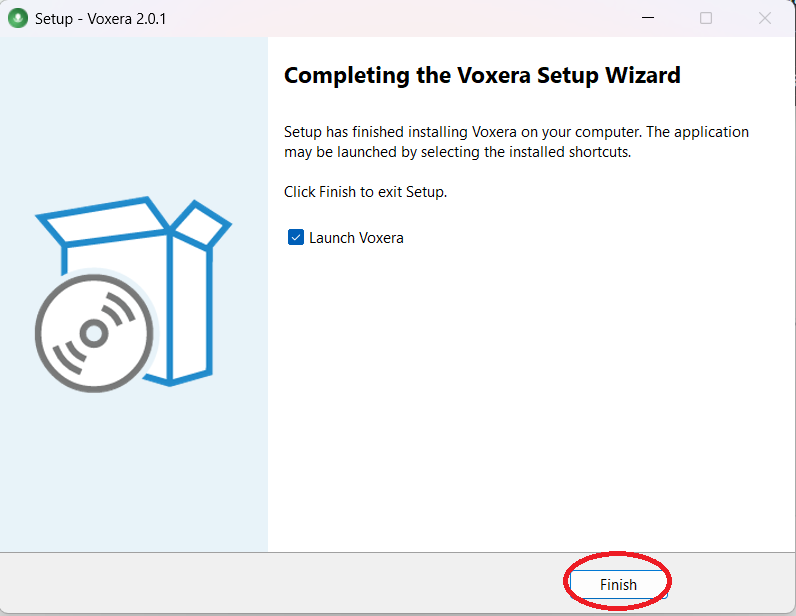
Leave Launch Voxera checked to start the app, or uncheck it. Click Finish.